To make an Instagram Reel on iPhone, open with a two-second hook, keep the frame at 9:16, cut every pause, add captions and a music bed with Auto-Duck, apply one colour look, and export at 1080p. Edit in a dedicated app before you upload: Instagram's in-app tools cannot strip filler words or restyle captions, and a burned-in caption looks identical when you repost the file as a TikTok.
Reels reward polish and consistency. The creators who grow are not filming anything special - they are editing tightly and captioning well. Here is the whole flow on an iPhone.
Step 1: Plan a 3-part structure
Every strong Reel has a hook (first 2 seconds), a payoff (the value or story), and a button (a closing line or CTA). Decide these before you film so the edit has a spine.
The tracking behind a face-aware crop is Apple's Vision framework, detecting on the device so the frame can follow a speaker with no server in the loop.
Apple exposes screen capture on iPhone through ReplayKit, which covers both recording and broadcasting.
Step 2: Film vertical or reframe later
Shoot 9:16 if you can. If you film wide for quality, reframe afterward with face-aware Make Vertical so you stay centered. Front-light your face and keep the mic close - see how to record better video on iPhone.
Step 3: Import and cut tight
Bring clips into an editor and trim ruthlessly. Remove pauses, restarts, and "um"s. On Zella for iPhone, Auto-Polish strips silences and fillers in one tap, so the raw take becomes a tight clip immediately.
Step 4: Captions with movement
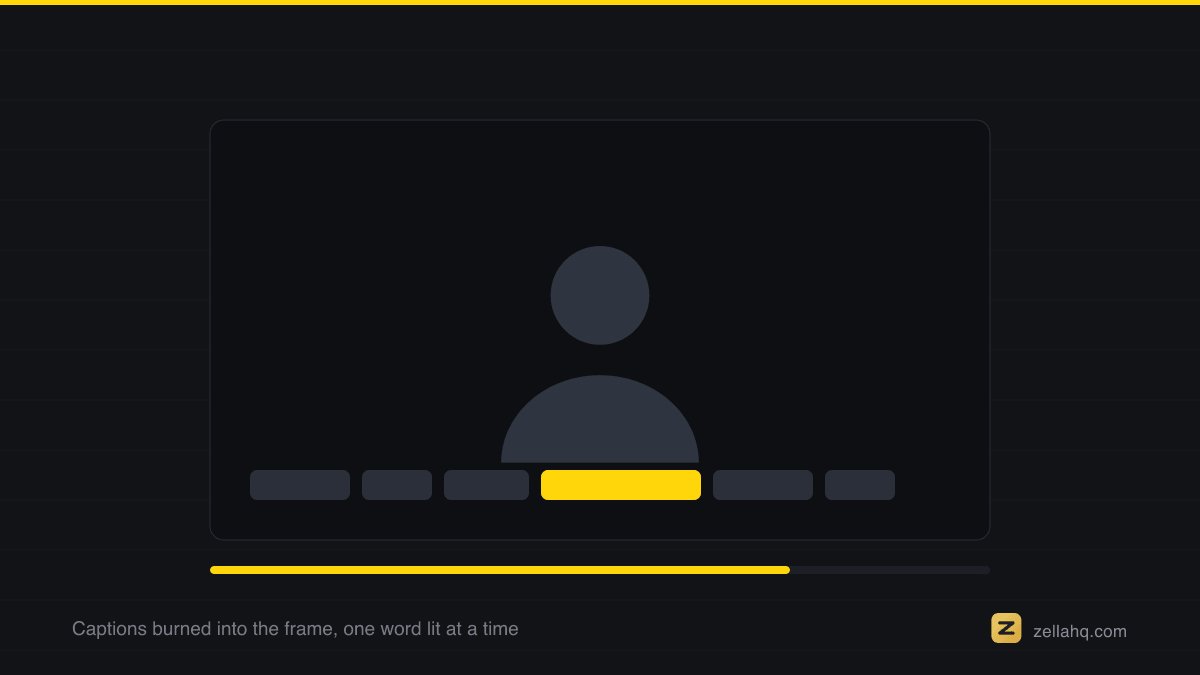
Generate on-device captions and choose a preset with an active-word highlight. Place them in the middle-lower area so Instagram's UI (username, buttons) does not cover them. Zella transcribes on the phone - nothing uploads. See how to add captions to a video on iPhone.
The one-tap version, when you have no time
If the take is decent and you just need it posted, Reel Pack does steps 3 to 5 in a single tap: word-pop captions, a vertical reframe, and a transition on every cut. It is the shortcut for a daily posting habit, and everything it does stays editable afterwards.
For a cutaway when you have no B-roll, Auto B-Roll generates cutaway cards on-device from your own caption keywords - no API key and no network. Add a free Pexels or Pixabay key only if you want real stock footage instead of cards.
Step 5: Music, sound, and color
Add a music bed and turn on Auto-Duck so it drops under your voice. One color look unifies the footage. A couple of sound effects on cuts add polish. Do not overdo any of them - support the content, do not bury it.
Step 6: Export and upload
Export at 1080p, 9:16, with the Reels preset. Save to Photos, open Instagram, and upload the finished clip. Add your on-platform caption, cover frame, and hashtags. Because captions are burned in, the exact same file works as a TikTok and a Short.
Why edit before uploading
Instagram's editor is convenient but limited. A dedicated app gives you automatic cleanup, better caption styles, real grading, and a consistent look - all on-device with Zella. Zella for iPhone is out now on the App Store; the Mac app ships on the Mac App Store today. One Pro purchase lifts the export length cap, adds 4K, and covers both. Start on the phone and hand off to the Mac when a clip needs a bigger screen.
A structure that keeps people watching
| Section | Roughly | Job |
|---|---|---|
| Hook | First 2 seconds | Give a reason to stay: the payoff, a claim, or a question |
| Payoff | The middle | Deliver the thing the hook promised |
| Button | Last 2 seconds | A takeaway or a reason to follow, not a fade-out |
Export at 1080 x 1920. The same file uploads to TikTok and Shorts without re-rendering, so a Reel is really three posts. Free exports run up to 2 minutes at 1080p with no watermark, which covers almost every Reel; the one-time Pro unlock is what you need for anything longer or in 4K.
Tips for Reels that grow
- Front-load the value. Instagram shows the first frames as the preview.
- Keep motion in every shot - zoom, cut, or move so the frame never freezes.
- Post the same edit as a TikTok and a Short; the 9:16 export is universal.
- Watch your best Reel muted. If it still works, your captions are doing their job.
Frequently asked questions
Do I need a separate app to make good Reels? Not required, but it helps a lot. Automatic silence removal and better captions are the difference between "fine" and "polished."
What is the best length for a Reel? Short enough to hold attention start to finish. Cut anything that does not add.
Can I make faceless Reels on iPhone? Yes - use screen recordings, imported stock footage, and text. See how to screen record on iPhone with sound.
Can I reuse one edit across TikTok, Reels, and Shorts? Yes. Export once at 9:16 with burned-in captions and upload the same file everywhere.
Make your next video with Zella.
Record, edit and ship on Mac and iPhone - local, private, free to start.
RELATED