For vertical short-form video (TikTok, Instagram Reels, YouTube Shorts, Stories) use 1080 x 1920 pixels at a 9:16 aspect ratio. For horizontal video (YouTube, LinkedIn, X, Facebook feed) use 1920 x 1080 at 16:9. Square 1:1 at 1080 x 1080 is the safest shape for mixed feeds. Keep text and logos out of the bottom 25 percent and off the right rail, where the app's own buttons sit.
The short answer: vertical platforms (TikTok, Instagram Reels, YouTube Shorts, Stories) all use 1080 x 1920 pixels at a 9:16 aspect ratio. Horizontal video (YouTube, LinkedIn, X, Facebook feed) uses 1920 x 1080 at 16:9. Square 1:1 (1080 x 1080) is the safest bet when you are not sure, because it displays cleanly in almost every feed.
If you only remember one number, remember 1080 x 1920 - a single vertical MP4 at that size plays cleanly on TikTok, Reels, and Shorts, which is why it is the default export target for cross-platform creators (Kapwing).
What does aspect ratio actually mean?
Aspect ratio is the shape of your video frame, written as width:height. A 9:16 video is tall (portrait), a 16:9 video is wide (landscape), and a 1:1 video is a square. Resolution is the pixel count that fills that shape - for example, 9:16 at 1080p means 1080 pixels wide by 1920 pixels tall.
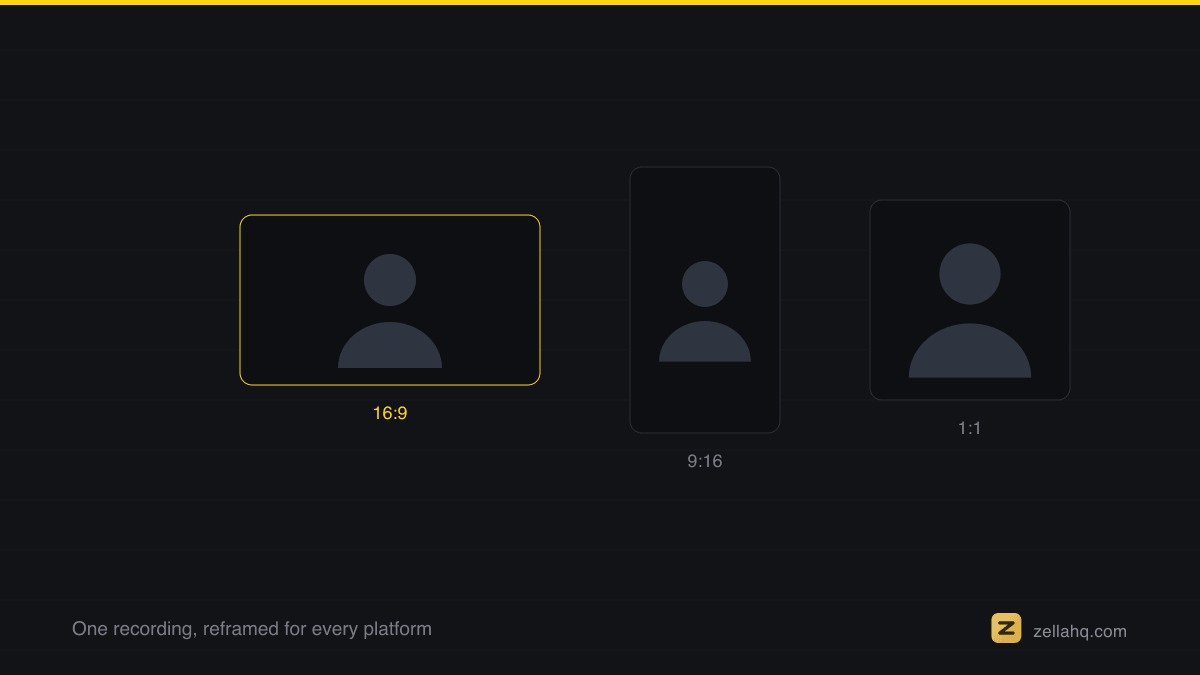
Getting the ratio right matters more than the exact pixel count. If you upload a 16:9 video to a 9:16 slot, the platform either crops your sides off or pads the frame with black bars, both of which look amateur and hurt performance.
The 2026 video size cheat sheet (all platforms)
Here is the complete reference table. Dimensions are the recommended upload size; ratios are what each placement natively displays.
| Platform / placement | Aspect ratio | Recommended resolution | Notes |
|---|---|---|---|
| TikTok (feed) | 9:16 | 1080 x 1920 | H.264 MP4, 30 fps for talking, 60 fps for motion (TikTok publishes no spec; this is standard encoding practice) |
| Instagram Reels | 9:16 | 1080 x 1920 | Unchanged for 2026 |
| Instagram feed post | 4:5 or 1:1 | 1080 x 1350 or 1080 x 1080 | 4:5 takes the most vertical feed space |
| Instagram Stories | 9:16 | 1080 x 1920 | Full-screen vertical |
| YouTube Shorts | 9:16 | 1080 x 1920 | Supports up to 4K but player is optimized for 1080p |
| YouTube (standard) | 16:9 | 1920 x 1080 | 4K (3840 x 2160) accepted; 4:3 gets pillarboxed |
| LinkedIn (landscape) | 16:9 | 1920 x 1080 | Most professional format for corporate video (Sprout Social) |
| LinkedIn (vertical) | 9:16 | 1080 x 1920 | Supported alongside 1:1 square |
| X / Twitter | 16:9 (or 9:16, 1:1) | 1920 x 1080 | 1280 x 720 also common; 512 MB limit on free accounts |
| Facebook feed | 16:9 to 9:16 | 1280 x 720 / 720 x 1280 | Flexible; 1:1 is the safest feed choice |
| Facebook Reels | 9:16 | 1080 x 1920 | Full-screen vertical |
| Facebook Stories | 9:16 | 1080 x 1920 | Full-screen vertical |
Sources: Sprout Social, SocialBee, Mavic AI.
What is a safe zone, and why does it matter?
A safe zone is the region of the frame that the app's own interface does not cover. Every vertical app layers a caption bar, profile chrome, and a right-side rail of like/comment/share buttons on top of your video. If your text or logo sits under those elements, viewers never see it.
The three big vertical apps all use a 9:16 canvas but hide different areas, so a caption that is clear on TikTok can be buried on Reels. Keep the important stuff centered and lifted off the bottom edge.
Safe zone reference (1080 x 1920 canvas)
| Platform | Keep clear at top | Keep clear at bottom | Keep clear on right | Usable safe area |
|---|---|---|---|---|
| TikTok | ~130 px | ~484 px | ~140 px | ~900 x 1492 centered |
| Instagram Reels | ~210 px | ~310 px | ~84 px | ~910 x 1386 centered |
| YouTube Shorts | ~250 px | ~450 px | right rail | ~984 x 1500 centered |
Sources: Kreatli safe zone hub, Zeely AI, Postplanify.
The bottom-right corner is the danger zone across every vertical app - it is where the engagement buttons stack, so text placed there disappears. A safe rule is to keep captions and logos roughly 15 percent above the bottom edge and clear of the right rail. No platform publishes exact safe-zone coordinates, so every figure in circulation - including the table above - is measured by creators off screenshots, and shifts whenever an app moves its buttons.
How do I make one recording work on every platform?
You do not need to re-shoot for each platform. Record once, then reframe. The reliable workflow:
- Record at the highest quality your source allows (screen recordings are natively 16:9).
- Edit and finish in one aspect ratio, usually the widest one you plan to post.
- Reframe the finished edit to each target ratio - 9:16 for Shorts and Reels, 1:1 for feed, 16:9 for YouTube.
- Check each version against the safe-zone table above before exporting.
The reframing step is where most people lose time, because a naive crop of a 16:9 screen recording chops the speaker out of frame. Tools with face-tracking reframe keep the subject centered automatically. Zella's one-click reframe turns a horizontal Mac screen recording into a 9:16, 1:1, or 16:9 version and tracks the face so the person stays in frame - see the walkthrough in how to make a 9:16 reel from a screen recording.
What frame rate and file format should I use?
These are the export settings that upload cleanly to every platform in the table above.
| Setting | Use this | Why |
|---|---|---|
| Container | MP4 | Accepted everywhere; MOV only if you need alpha |
| Video codec | H.264 | Universal decode; H.265/HEVC saves size but re-encodes on some platforms |
| Audio codec | AAC, 48 kHz stereo | The default every platform expects |
| Frame rate | 30 fps | Talking head, screen recordings, most social content |
| Frame rate (motion) | 60 fps | Gameplay, sports, anything with fast pans |
| Resolution | 1080p (1080 x 1920 or 1920 x 1080) | Every player is tuned for it |
| File size | Under 250 MB for a 1080 x 1920 clip | Uploads without transcode failures (Kapwing) |
Export at 1080p unless you have a specific reason not to. It looks sharp on a phone, uploads fast, and every platform re-encodes anyway.
The exception is screen recordings of small UI text, where the extra pixels survive the platform's compression and keep menu labels legible. Zella exports 1080p on the free plan and adds 4K on the one-time $89 Pro, plus 8K on the Mac.
Which ratio should I choose if I can only make one video?
Pick based on where the video will live most:
- Mostly short-form and mobile (TikTok, Reels, Shorts, Stories): make it 9:16 vertical.
- Mostly professional or long-form (LinkedIn, YouTube, embedded on a site): make it 16:9 horizontal.
- Posting the same clip across mixed feeds and not sure: make it 1:1 square, the safest all-round shape for Facebook, Instagram, LinkedIn and X feeds - all four accept it, and none crops it badly.
For a hands-on guide to converting a horizontal recording into vertical clips, see how to resize a video for TikTok, Instagram, and YouTube.
Frequently asked questions
What is the best video size for TikTok in 2026?
1080 x 1920 pixels at a 9:16 aspect ratio, exported as an H.264 MP4. Shoot 30 fps for talking content and 60 fps for high-motion footage. Worth knowing where that comes from: TikTok publishes no video specification at all, so anything presented as a "TikTok spec" is someone else's inference. The frame-rate advice is ordinary encoding practice rather than a platform requirement.
Is 9:16 the same on TikTok, Reels, and Shorts?
The canvas is identical - all three use 1080 x 1920 at 9:16 - but the safe zones differ. Community measurements put the usable centre at roughly 900 x 1492 on TikTok, 910 x 1386 on Reels and 984 x 1500 on Shorts. Treat them as approximate - they are read off screenshots, not published - and keep captions centred and away from the bottom-right either way.
What aspect ratio is best for YouTube?
Standard YouTube videos are 16:9 at 1920 x 1080. YouTube Shorts are 9:16 at 1080 x 1920. Uploading a 4:3 or square video to standard YouTube causes pillarboxing (black bars on the sides).
What size video works best on LinkedIn?
For most corporate and B2B content, 16:9 landscape at 1920 x 1080 is the most effective and professional format. LinkedIn also supports 1:1 square and 9:16 vertical (Sprout Social).
Do I have to re-record for each platform?
No. Record once at the highest quality, finish your edit, then reframe the same project to 9:16, 1:1, and 16:9. Face-tracking reframe tools keep the subject centered so you avoid cropping the speaker out.
What frame rate should social video be?
30 fps for talking-head and screen recordings, 60 fps only for fast motion. Higher frame rates increase file size without improving perceived quality on static content.
Record once, ship everywhere
The fastest path is a tool that records, edits, and reframes in one place, so the numbers in this guide are presets rather than something you type in by hand.
Zella is a native screen recorder and AI editor for Mac and iPhone that runs 100 percent on-device. Record unlimited footage free, let Auto-Polish cut the dead air, add captions in one click, then reframe to 9:16, 1:1 or 16:9 with Vision face-detection auto-tracking so the speaker stays centered through the crop.
Export presets are built in at the exact sizes above: TikTok, Reels and Shorts at 1080 x 1920, YouTube at 1920 x 1080, Instagram feed at 1080 x 1350. The free plan exports 1080p, watermark-free, up to 2 minutes per export.
Make your next video with Zella.
Record, edit and ship on Mac and iPhone - local, private, free to start.
PART OF A SERIES
Reframing for vertical and square
One recording, every aspect ratio, with the face-aware crop doing the work.
- How to Resize a Video for TikTok, Instagram and YouTube
- How to Make a 9:16 Reel From a Screen Recording
- How to Make a Video Vertical (9:16) on iPhone for TikTok
- Best Video Size and Aspect Ratio for Every Platform (2026)you are here
All of it lives under Ship Everywhere.
RELATED