To screen record on iPhone with sound, add Screen Recording in Settings > Control Center, swipe Control Center open, touch and hold the record button, tap the Microphone icon until it turns red, then tap Start Recording. A plain tap records silently, which is why most people end up with no audio. Stop from the red status bar; the clip saves to Photos.
Screen recording is how you make an app demo, a bug report, a how-to, or a reaction video without a second camera. The tricky part is sound - here is how to get both your narration and the app's audio, then turn the raw capture into something worth posting.
Add the screen recorder to Control Center
- Open Settings > Control Center.
- Scroll to Screen Recording and tap the green +.
- Now it lives in Control Center, one swipe away.
If the terms are new, Apple's audio fundamentals covers levels and headroom, and why hitting the right peak does not by itself make a mix sound right.
The iOS side of screen capture is ReplayKit, Apple's framework for recording and broadcasting the display. It is also what makes whole-device capture possible: the system broadcast picker records across every app, not just the one you started in.
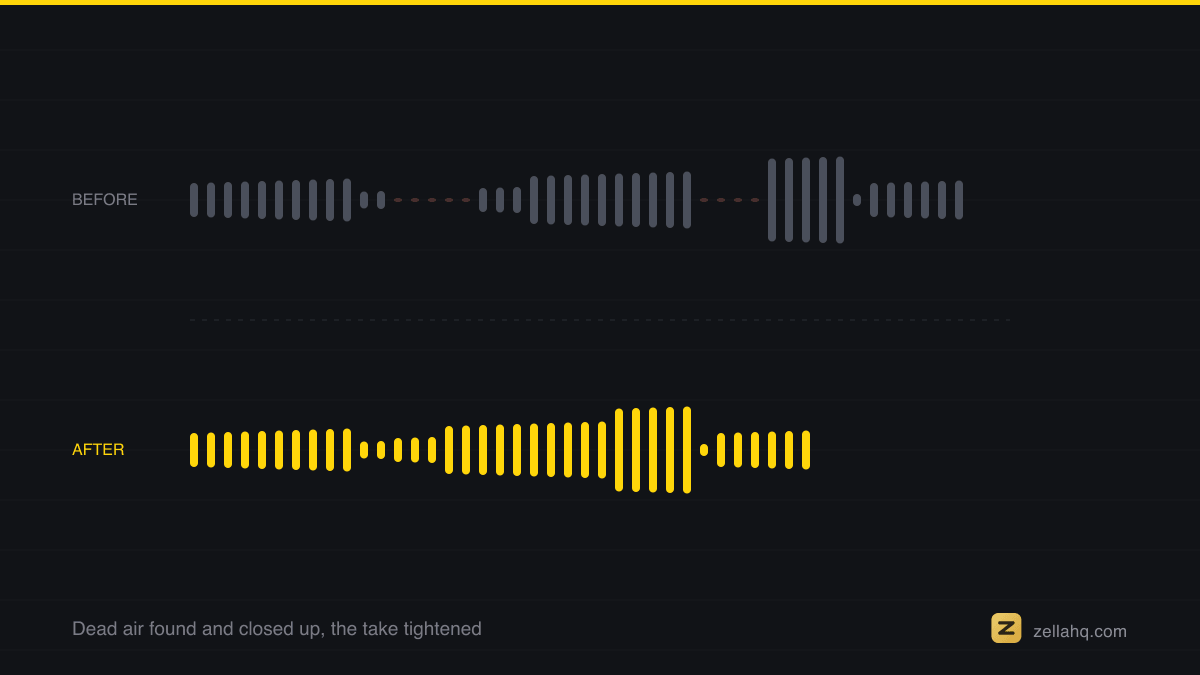
If the narration matters, use AirPods or a plugged-in mic rather than the built-in one. The phone's mic sits next to your hand and picks up the whole room, and getting the mic closer to your mouth beats any amount of cleanup afterwards.
Record with your voice and app sound
- Swipe down from the top-right corner to open Control Center.
- Touch and hold the Screen Recording button (a plain tap starts a silent recording).
- Tap the Microphone icon so it turns red - this adds your voice.
- Tap Start Recording and wait out the 3-second countdown.
- Go do whatever you are demonstrating. Everything on screen plus your narration and the app's own audio are recorded.
To capture only the app's sound and not your voice, leave the microphone off but keep the ringer on.
Stop and find the file
Tap the red clock in the status bar (or the Dynamic Island) and tap Stop, or reopen Control Center and tap the record icon again. The video saves automatically to your Photos library.
The problem with editing in Photos
In Photos you can drag the yellow trim handles to cut the start and end, and that is about it. You cannot add captions, zoom in on a button you are pointing at, remove the long silences, or reframe the recording to vertical. For a real how-to or a social clip, that is not enough.
Edit the screen recording properly, on-device
Zella for iPhone is built for exactly this. Import the screen recording from Photos (or capture it inside the app with ReplayKit and whole-device broadcast), then:
- Trim and ripple-delete the parts where you fumbled, and the timeline closes the gap for you.
- Auto-zoom so the viewer's eye follows what you are doing.
- Add on-device captions in one tap - nothing uploads, so private app data stays private. See the iOS captions guide.
- Reframe to 9:16 with face-aware Make Vertical for TikTok, Reels, and Shorts.
- Blur sensitive info like API keys or customer names before you share.
The whole edit happens on the phone with no cloud round-trip, which matters when the recording shows unreleased features or private data. Read the iOS recording docs for the capture options, then watch for the release: Zella for iPhone is out now on the App Store; the Mac app ships on the Mac App Store today, and one Pro unlock covers both.
What the microphone toggle actually controls
This is the part that trips everyone up, so it is worth being precise:
| Microphone | You get | Use it for |
|---|---|---|
| On (red) | Your narration mixed with the app's own audio | Demos, tutorials, walkthroughs, reactions |
| Off (default) | The app's audio only | Capturing a video or a game without your room in it |
The toggle only appears if you touch and hold the record button. A plain tap starts immediately with the mic off, which is why so many recordings come back silent. The setting is remembered between recordings, so check it if the last take was different.
Two more things worth knowing before you record something that matters: the clip saves to Photos at your screen's own resolution and aspect ratio, so an iPhone recording arrives already vertical and an iPad one does not, and DRM-protected video blacks out by design in streaming apps. That is content protection working, not a settings mistake.
Tips for cleaner screen recordings
- Turn on Do Not Disturb first so notifications do not slide in mid-take.
- Slow down your taps. On-screen actions that feel slow to you read as normal speed to a viewer.
- Narrate as you go - it is far easier than adding a voiceover later.
- Record in one pass and cut mistakes out afterward, rather than restarting.
Frequently asked questions
Why is my iPhone screen recording silent? You tapped the record button instead of long-pressing it, so the microphone was off. Long-press, enable the mic, and re-record.
Can I screen record a streaming app on iPhone? The screen records fine, but some streaming apps black out their protected video by design. That is DRM, not a settings issue.
Where do iPhone screen recordings save? To the Photos app, in your main library, as a standard video file you can trim, share, or import into an editor.
How do I add captions to a screen recording on iPhone? Import it into an editor that transcribes on-device. Zella generates timed captions on the phone with no upload - see how to add captions to a video on iPhone.
Make your next video with Zella.
Record, edit and ship on Mac and iPhone - local, private, free to start.
PART OF A SERIES
Recording system audio and your mic
Capturing what the computer plays and what you say, in one synced take.
- How to Record System Audio and Mic at Once on Mac
- How to Screen Record on iPhone With Sound (and Edit It)you are here
- How to Record a Zoom Meeting on Mac (With Your Mic)
- How to Record a Webinar on Mac (Audio + Slides)
All of it lives under Capture.
RELATED