A retention graph shows the share of viewers still watching at each second, so read its shape: an opening cliff means a slow start, a steeper slope than usual means pacing, a dip means one bad moment, a spike means a rewatch, and an early fall means the outro announced the end. Note the three biggest drops, play 10 seconds before each in your edit, name the cause and fix one or two things per video, comparing only against your own recent videos of similar length.
On this page
- What a retention graph actually shows
- Three rules before you read anything
- The six shapes and what each means in a talking-head edit
- The 30-minute retention review, step by step
- Copy-paste drop-off log
- Cause codes: name the problem before you fix it
- How to fix each cause in the edit
- Greeting and mismatch (G, M)
- Pauses, fillers and restarts (P, F, R)
- Tangents and confusing steps (T, C)
- Static stretches (S)
- Muted viewers (C, A)
- Outro (O)
- Spikes
- When there is no data yet: the cold-watch test
- Turn findings into rules for the next recording
- Talking-head script skeleton
- B-roll shot list to film on the same day
- Common mistakes when editing from a retention graph
- Where Zella fits
- Resources and further reading
- Frequently asked questions
Most retention advice tells you what to do in general: hook fast, cut pauses, add b-roll. Your retention graph tells you something more useful. It shows the exact second your own viewers left this video. This guide is about reading that graph and turning each drop into one specific edit, with a talking-head video as the example.
If you want the editing moves themselves explained in full, retention editing: how to keep viewers watching and how to make talking-head videos engaging cover them. This page decides which of those moves a given video actually needs.
What a retention graph actually shows
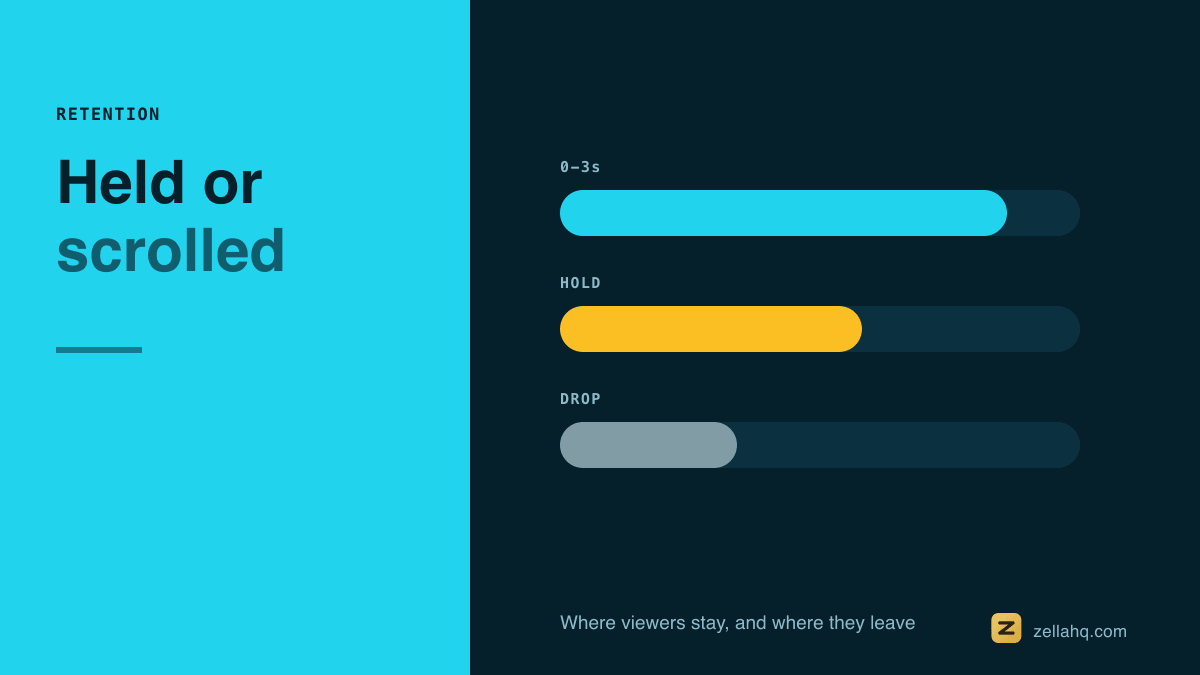
A retention graph has time along the bottom and the share of viewers still watching up the side. At second 0 it starts near 100%. Every downward step is people leaving. Every upward bump is people rewinding to watch a part again.
Three plain definitions help:
- Audience retention: the percentage of viewers still watching at a given moment.
- Average view duration: how long the average viewer watched, in minutes and seconds.
- Average percentage viewed: that duration as a share of the whole video.
YouTube's help page on the audience retention report describes four shapes the line can take: flat, a gradual decline, spikes and dips. YouTube does not publish a "good" retention percentage for any length. Its own advice on engagement metrics is to compare a video with your own recent uploads of a similar length. Any benchmark you see quoted elsewhere is a third-party average, not a platform number.
Where to find it on YouTube: YouTube Studio, then Content, then pick the video, then Analytics, then the Engagement tab. Shorts have their own view in Studio, which shows how many people chose to keep watching against how many swiped away. Instagram and TikTok show watch time in each video's insights; the exact charts change, so check the insights screen in your app.
Three rules before you read anything
- Wait for enough viewers. On a video with a handful of views, one person leaving looks like a cliff. If the line changes shape a lot from one day to the next, it is still noise. Wait until it settles.
- Compare like with like. A 40-second Short and a 12-minute tutorial produce completely different curves. Compare a video with your last few of a similar length and format.
- Read in seconds, then open the edit. A drop at 1:42 means nothing until you watch what is on screen at 1:32 to 1:47. Keep the project open in your editor while you read the graph.
The six shapes and what each means in a talking-head edit
This is the core of the method. Match the shape you see to the row, then go to the fix.
| Shape on the graph | What it usually means in a talking-head video | The edit to try | Deeper guide |
|---|---|---|---|
| Sharp cliff in the first few seconds | The video starts slowly: a greeting, a "so today", or a first shot that does not match the title | Start on the first sentence that matters, add a hook title, open punched in | Hook the first 3 seconds |
| A steady slope, steeper than your other videos | Pacing: pauses, filler words, repeated sentences | Cut silences and fillers, delete restarts | Which pauses to remove and which to keep |
| A dip at one moment | One specific bad moment: a tangent, a confusing step, a long static stretch, an ad read | Cut it, shorten it, or cover it with b-roll | B-roll for talking heads |
| A slow sag through a long middle | One unchanging shot for too long | Add a visual change: a zoom, a cutaway, an on-screen word | Pattern interrupts |
| A spike | People rewound to see something again | Decide if it was good (do more of it) or unclear (slow it down, caption it) | See the spike section below |
| A fall well before the end | The outro announced the finish: "so that's it", "before you go" | End on your last real point | See the outro fix below |
A flat line after the opening is the shape you want. It means the people who stayed after the first few seconds mostly stayed to the end.
The 30-minute retention review, step by step
Do this once per video, about a week after you post it, or once the line has settled.
- Open the graph and write down two numbers: average view duration and average percentage viewed. Put the same two numbers from your last three similar videos next to them.
- Mark the three biggest drops. Note each as a timestamp, for example 0:04, 1:42, 6:10. Ignore small wobbles.
- Mark any spike. Note its timestamp too.
- Open the edit. For each timestamp, play from 10 seconds before to 5 seconds after.
- Watch each spot twice. Once with sound, once muted. A lot of people watch muted, so a moment that only works with sound shows up as a drop.
- Name the cause using the codes in the next section. One code per drop.
- Decide the fix. Either re-edit now (if you plan to re-post it, cut a Short from it, or reuse it) or turn it into a rule for the next video.
- Log it in the table below so patterns show up across videos.
Copy-paste drop-off log
| Video | Length | Timestamp | Drop size (small / medium / big) | Cause code | What was on screen | Fix for next time |
|---|---|---|---|---|---|---|
After five or six videos, sort by cause code. The code that keeps appearing is your editing habit to fix first.
Cause codes: name the problem before you fix it
Naming the cause stops you from fixing the wrong thing. Use one of these:
- G, greeting: the video opens with hello, a name, or a channel intro before the point.
- M, mismatch: the first seconds do not deliver what the title or thumbnail promised. This is packaging, not editing.
- P, pause: a gap with no speech.
- F, filler: "um", "uh", "like", "you know", or a sentence that starts with "so".
- R, restart: you said the same sentence twice and both takes stayed in.
- T, tangent: a side story that does not serve the title.
- S, static: the same framing with no visual change for a long stretch.
- C, confusing: a step or claim that viewers could not follow.
- A, audio: a level jump, a noise, music too loud under the voice.
- O, outro: the video signals that it is over before it is over.
How to fix each cause in the edit
Greeting and mismatch (G, M)
- Find the first sentence that states the problem or the payoff. Delete everything before it.
- Put that sentence, or a short version of it, on screen as a title for the first seconds.
- Check the opening against the title. If the title says "3 mistakes", the first mistake should start almost at once.
If the cause is M, no edit fully fixes it. Change the title or thumbnail so they promise what the video delivers. The full opening method is in how to fix a weak video opening.
Pauses, fillers and restarts (P, F, R)
- Run an automatic silence cut first. It is fast and consistent.
- Then remove fillers. Expect to check them by hand: a tool can only cut a filler that appears in its transcript.
- Then search for restarts. These are the best cuts in a talking-head video because the viewer hears the same idea twice. Keep the better take, delete the other.
- Play the result at normal speed. If it sounds breathless, put back a short breath before key points.
A jump cut is a cut inside one continuous shot, so your head jumps slightly between two moments. With one camera, every pause cut makes one. That is normal in talking-head video. To make it look intentional, alternate between your normal framing and a modest punch-in on every other cut, so each jump reads as a change of shot.
Tangents and confusing steps (T, C)
- For a tangent, ask: does the title need this? If not, cut it whole. Do not trim it shorter; a shorter tangent is still a tangent.
- For a confusing step, add support rather than speed: a caption of the key word, an arrow, a zoom on the thing you are describing, or a two to four second cutaway.
Static stretches (S)
- Find the longest run with no change of framing, text or shot.
- Break it with one change: a zoom in, a cutaway, a title on a key word.
- Do not stack all three at once. One clear change is enough to reset attention.
How to add photo pop-ins to a talking-head video is a cheap way to do this when you have no extra footage.
Muted viewers (C, A)
- Add captions. Keep them to one or two lines.
- Move them so they do not sit on your mouth or your hands. See how to move captions so they do not cover your face.
- For short-form, word-by-word captions keep the eye moving; word-by-word captions that hold attention explains the styles.
- For audio drops, listen for a jump in loudness between clips and for music fighting the voice. Turn the music down under speech.
Outro (O)
- Find the line where you start wrapping up.
- Delete the wrap-up, or move the one useful bit (where to go next) to just before your final point.
- End on the last useful sentence. Viewers who are still there at the end are the ones most likely to watch your next video.
Spikes
A spike means people went back. Watch that moment and pick one:
- It was good (a reveal, a result, a funny line): make more moments like it, and consider opening with it next time.
- It was unclear (a fast step, a number said quickly): slow it down, caption the number, or zoom in.
When there is no data yet: the cold-watch test
A new channel, a first upload or a client video has no graph. You can still predict the drops before you post.
- Export the video and watch it once on a phone, at the size it will be seen. No scrubbing, no pausing.
- Keep a pen ready. Write a timestamp every time you feel the urge to skip ahead. Each one is a predicted dip.
- Watch it once muted. Write a timestamp wherever the picture alone does not make sense.
- Ask one other person to watch it and say "skip" out loud whenever they would. Do not explain the video first.
- Count the seconds to the first useful sentence. If it is more than a few, cut.
- Fix every timestamp you wrote down, using the cause codes above.
It is not a real retention graph, but it catches most greeting, pause and outro problems before any viewer sees them.
Turn findings into rules for the next recording
The best fix is the one you never have to make. After a few reviews, turn your most common cause codes into rules you check before you record.
Talking-head script skeleton
HOOK (one sentence): the problem or the result, said first.
PROOF (one sentence): why you are worth listening to on this.
PROMISE (one sentence): what they will have by the end.
POINT 1: claim, example, one visual (what will be on screen?).
POINT 2: claim, example, one visual.
POINT 3: claim, example, one visual.
LAST POINT: the strongest one, kept for the end.
END: one line pointing to the next video. Stop.
B-roll shot list to film on the same day
| Point in the script | What I describe | Shot to film (5 to 10 seconds) | Done |
|---|---|---|---|
| Point 1 | |||
| Point 2 | |||
| Point 3 |
Filming cutaways while the set is still up is far quicker than hunting for them later.
Common mistakes when editing from a retention graph
- Reading a graph with almost no viewers. Small numbers produce dramatic shapes that mean nothing.
- Blaming the edit for a packaging problem. An opening cliff can come from a title that promised something else.
- Fixing everything at once. Change one or two things per video, or you will not know which change helped.
- Cutting every breath. Over-tight speech can cause its own drop. If a fast section shows a spike, people may be rewinding because they missed something.
- Adding b-roll that does not match the words. A cutaway that has nothing to do with the sentence is a distraction, not a fix.
- Comparing a Short with a long video. Compare within the same length and format.
Where Zella fits
Zella is an editor and screen recorder for Mac and iPhone. It does not read your YouTube analytics: you still read the graph in YouTube Studio. What it does is make the fixes above quick to apply and easy to undo.
- Pauses and fillers (P, F): on the Mac, Cut Empty Space and Remove Fillers in the Auto Tools sidebar. On iPhone, Clean Up does both in one pass. One honest catch: on the Mac, Apple's speech engine often leaves plain "um" and "uh" out of the transcript, so some survive and need cutting by hand. The iPhone transcribes word for word and catches them. The AI cleanup guide covers both.
- Restarts (R): on iPhone, transcript editing lets you delete a sentence from the transcript and the video is cut to match.
- Openings and static stretches (G, S): Auto-Polish cuts silences and fillers, adds an opening title from your first spoken line, blends the joins and adds small moves through stretches that would otherwise sit still. On the Mac, Smart Zooms places a zoom at each fresh start in a camera video. One undo reverses the whole Auto-Polish pass.
- Muted viewers (C): captions are a separate step: Enable Captions on the Mac, Captions on iPhone.
- Cutaways (S, C): Add B-Roll on the Mac and Add cutaways on iPhone read your captions and place a cutaway at the most visual keyword. With no key they make designed keyword cards on your device; a free stock key adds filmed footage.
Editing runs on your device and nothing is uploaded to edit it. Zella is free to start, with no watermark and no account: free exports run up to 2 minutes at 1080p. Zella Pro is a one-time purchase that lifts the length cap, and every new install gets Pro Week, 7 days of Pro with no card. There is no Windows, Android or web version. You can get it from Zella on the App Store, and the download page lists what each device needs. The one-click editing feature page shows every cleanup tool in one place.
Resources and further reading
- YouTube Help: Measure key moments for audience retention: the four shapes of the retention line and where to find the report.
- YouTube Help: Understand your YouTube engagement: average view duration, average percentage viewed and comparing with your own uploads.
- YouTube Help: Get started creating YouTube Shorts: the basics of Shorts, which have their own retention view.
- Zella AI cleanup docs: Cut Empty Space, Remove Fillers, Clean Up and Auto-Polish on Mac and iPhone.
Frequently asked questions
What is a good audience retention rate? YouTube does not publish one. Compare each video with your own recent videos of a similar length and format, and look at the shape of the line more than any single percentage.
Why do viewers leave in the first few seconds? In talking-head videos it is usually a slow start (a greeting or setup before the point) or an opening that does not match the title and thumbnail. Start on the first sentence that matters and check it against the title.
What does a spike on a retention graph mean? People went back to watch that part again. Either it was worth rewatching, or it was unclear. Watch the moment and decide which.
How long should I wait before reading a retention graph? Until the shape stops changing much from day to day. With very few viewers, single people leaving create false cliffs.
Do jump cuts hurt retention? Not in talking-head videos, where viewers expect them. Long pauses and repeated sentences hurt more. Alternating between normal framing and a punch-in makes the cuts look deliberate.
Can I fix a video after it is published? Sometimes. YouTube Studio has a built-in editor for some changes, so check what it allows for your video. Most of the value comes from applying what you learned to the next video, or to a Short cut from this one.

Written by
Nasir Uddin Shamim
Founder of Zella
Nasir Uddin Shamim is the founder of Zella. He built his career in SEO, AI, and marketing - never short on ideas, but every one of them hit the same wall: turning a raw recording into a video worth posting. Like most beginners, he burned hours fighting complicated editors and shipped far less than he wanted to. So he built Zella, a screen recorder and AI editor for Mac and iPhone that does the hard parts for you - first to unblock himself, and now to help anyone go from raw clip to polished video without the learning curve.
More from Zella: fresh tutorials on the channels above, plus product updates and editing tips straight to your inbox.
Make your next video with Zella.
Record, edit and ship on Mac and iPhone - local, private, free to start.
RELATED