Auto captions · Mac and iPhone
Add animated captions to your video automatically
Most social video is watched with the sound off, which makes captions one of the strongest edits you can make. They also make a video usable for viewers who are deaf or hard of hearing, and for anyone watching somewhere quiet.
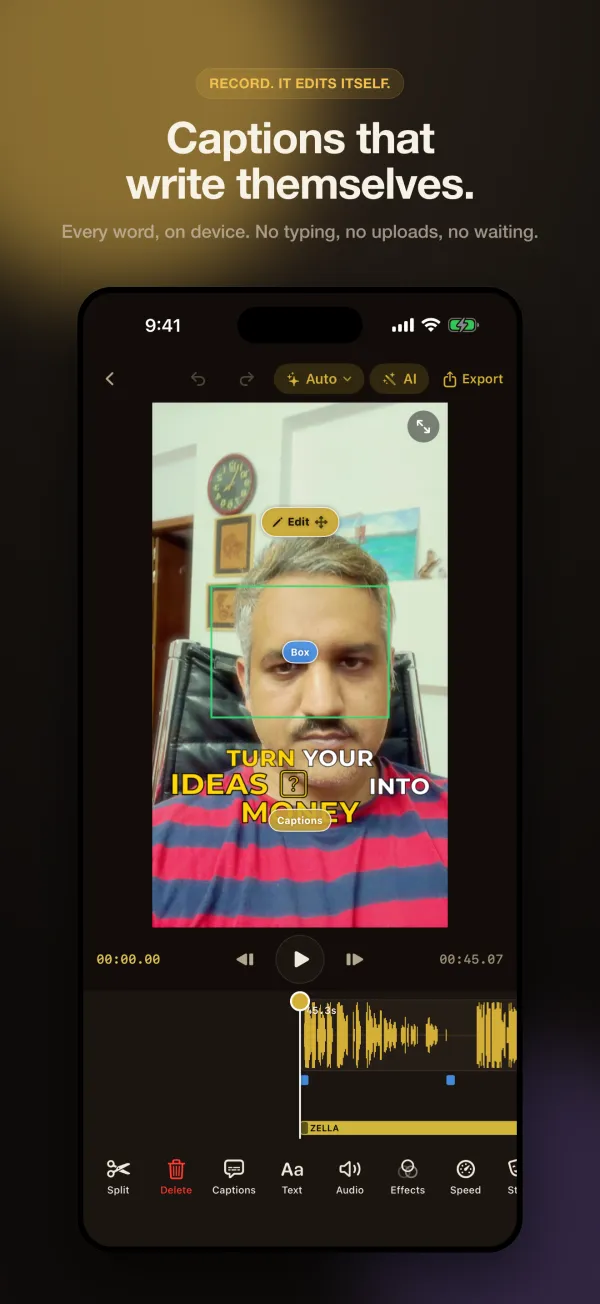
Zella writes them on your device from a word-level transcript, styles them with presets built for short-form, and keeps them on the right words when you cut. On the Mac you can also save them as SRT, VTT or CSV files.
- Mac and iPhone
- Free on every tier
Quick answer
To add captions to a video automatically, let Zella transcribe it on the device, on Mac or iPhone: the speech becomes word-timed captions with active-word highlight. There are 10 caption presets on the Mac and 9 on iPhone, such as Word Pop, Hormozi, Karaoke and Beast, and 27 spoken languages to choose from. Nothing is uploaded, captions follow every cut, and they are free on every tier.
How to do it in Zella
-
Step 1: Open the captions tool
On the Mac, open the Captions tab in the right inspector, or click Enable Captions in the sidebar. On iPhone, open Captions in the editor.
-
Step 2: Pick your language and transcribe
Choose the language you spoke, then click Transcribe audio on the Mac or add captions on iPhone. On iPhone the transcription model downloads once, about 145 MB.
-
Step 3: Choose a preset
Pick a style such as Word Pop, Hormozi, Karaoke, Pop Box or Beast. Active-word highlight switches on by itself for the styles that use it.
-
Step 4: Fix names and jargon
On the Mac, click a caption line to edit its text. On iPhone, tap a word in the transcript word editor; the timing stays intact either way.
-
Step 5: Set size and position, then export
Adjust the font, size, colour and position, then export. Captions burn into MP4, MOV and GIF exports, and on the Mac you can also save SRT, VTT or CSV.
Why do it this way
Styles made for short-form
Word-by-word presets with active-word highlight are the look that keeps viewers reading along, and you can import your own font for any script.
They survive the edit
Run Cut Empty Space, Remove Fillers or a manual ripple delete and the later captions slide earlier to stay on the right words.
Nothing leaves the device
Transcription runs on your Mac or iPhone, with no upload and no transcript service. On iPhone the transcript comes from a verbatim on-device Whisper model.
What you need
- macOS 14 Sonoma or later (Apple Silicon or Intel), or iPhone on iOS 18 or later
- Spoken audio in one of the 27 spoken languages Zella offers (18 verified end to end on iPhone)
- On iPhone, a one-time download of the captions model, about 145 MB, over Wi-Fi
- Free on every tier: no watermark, exports up to 2 minutes at 1080p
Questions
Which languages can Zella caption?
Both apps offer 27 spoken languages and caption each in its own script. On iPhone, 18 are verified end to end on native-voice audio, including English, Spanish, French, Hindi, Arabic, Japanese and Chinese. Bangla and Telugu do not work on-device; on iPhone, speak one of those and turn on English captions instead.
Are captions burned in or a separate file?
Both. They bake into MP4, MOV and GIF exports, and on the Mac you can also save SRT, VTT or CSV subtitle files. On iPhone you can import an SRT file instead of transcribing.
Is my audio uploaded for transcription?
No. Transcription runs on your Mac or iPhone. On iPhone the only network step is the one-time model download.
How many caption styles are there?
There are 10 caption presets on the Mac and 9 on iPhone, all with active-word highlight. The Mac's extra style is Hero.
Are auto captions free?
Yes, on every tier, with no watermark. The free tier exports up to 2 minutes at up to 1080p.
Related tools
Read the manual