Mac screen recorder
A free screen recorder for Mac that records internal audio
Recording what your Mac is playing, not just your voice, is the part people get stuck on. In Zella there is nothing extra to install for it: switch on Mic in the Setup panel and system audio is mixed in with your microphone automatically.
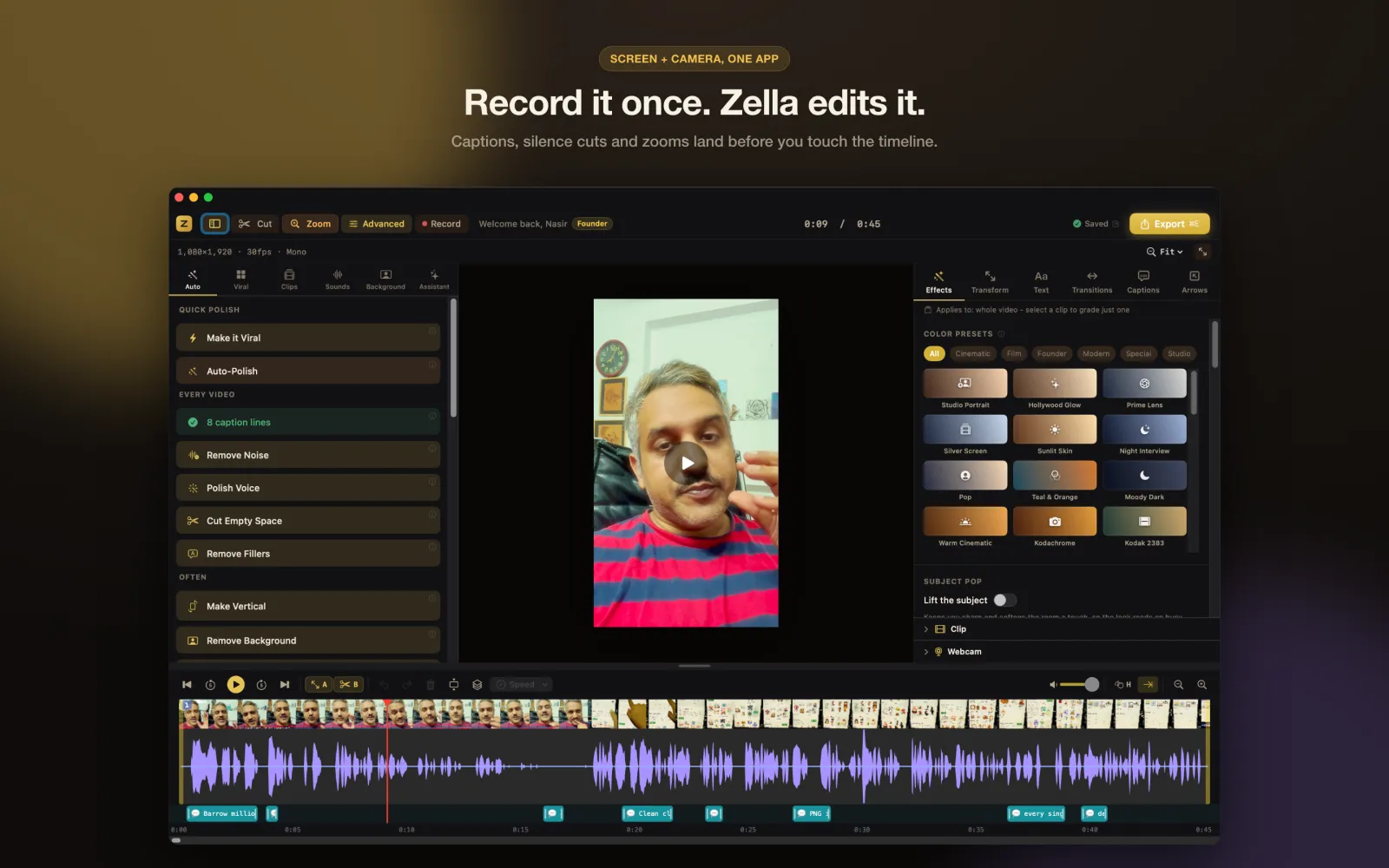
And the take does not stop at the file. You choose what to capture from the menu bar, record, and the clip lands in a full editor with captions, cuts, zooms and export presets, so a tutorial or a product demo can go from idea to posted without a second app.
Everything happens on your Mac. There is no account to create, no upload and no cloud library, and the free tier never stamps a watermark on what you export.
- Mac
- Free on every tier
Quick answer
Zella is a free screen recorder for Mac with internal audio (macOS 14 Sonoma or later, Apple Silicon or Intel): turn on Mic and it records your microphone together with the sound your Mac is playing, while it captures the full screen, a region, a single window or just your camera. Recording length is unlimited and exports never carry a watermark; a free export runs up to 2 minutes at up to 1080p. When you stop, the clip opens in Zella's editor, where Auto-Polish runs on its own to cut the silences and add captions.
How to do it in Zella
-
Step 1: Open the Setup panel
Click the Zella icon in the menu bar. The Ready to record panel opens with three source toggles: Screen, Camera and Mic. Mic records your microphone together with the sound your Mac is playing.
-
Step 2: Pick Full, Region or Window
Use the Full / Region switch. Region lets you draw a rectangle with a preset such as 16:9 YouTube, 9:16 TikTok, 4:5 Instagram or 1:1 Square, and Window follows one app window even when it moves. Turn Screen off and Camera on for a camera-only take.
-
Step 3: Choose a quality and start
Pick 720p, 1080p or 4K, then click Start Recording. A 3-2-1 countdown runs and a small floating toolbar with a timer appears.
-
Step 4: Pause, resume and stop
Click pause in the toolbar to step away; the paused time is left out and the clip stays one continuous file with audio and video in sync. Click the red square to stop.
-
Step 5: Edit and export
The editor opens with your recording loaded. Trim it, fix a caption or keep what Auto-Polish did, then click Export and choose MP4, MOV, GIF or M4A with a platform preset.
Why do it this way
Four capture modes, one panel
Full screen, a drawn region, a single window or camera-only, plus your webcam in a bubble over the screen when Screen and Camera are both on. Picking a 9:16 region also sets the export up for TikTok and Reels.
Built for long takes
Audio and video stay in sync from start to finish, Zella keeps the display awake while you record, and if the app ever crashes mid-take, crash recovery offers to rescue the file the next time you open it.
Tutorial polish while you record
Switch on the keystroke display in the toolbar so viewers see the shortcuts you press, and set click rings and a smoother cursor in Studio Settings. The clicks Zella records later drive Auto-Zoom Clicks in the editor.
What you need
- macOS 14 Sonoma or later, on Apple Silicon or Intel
- Screen Recording, Camera and Microphone permission, granted once
- Free on every tier: unlimited recording, no watermark, exports up to 2 minutes at 1080p
- Zella Pro ($89 once, Mac and iPhone) for exports longer than 2 minutes, 4K and 8K
Questions
How do I screen record on a Mac with internal audio?
Click the Zella icon in the menu bar, turn on Screen and Mic in the Setup panel and click Start Recording. Mic records your microphone mixed with your Mac's system audio, so the sound of the app or video you are showing is in the recording too. Switching where sound plays, for example to AirPods, does not affect the recording.
Is Zella's Mac screen recorder really free?
Yes. Recording is unlimited and free forever, with no watermark and no account. The free tier exports up to 2 minutes at up to 1080p. Zella Pro, a one-time $89 purchase that also covers iPhone, removes the length cap and adds 4K and 8K export, and every new install gets Pro Week: 7 days of Pro with no card.
Can I record just one window or part of the screen?
Yes. Window mode follows a single app window, even if you move it, and keeps the desktop and other windows out. Region mode records a rectangle you draw, at its exact pixel size, with presets for 16:9, 9:16, 4:5 and 1:1.
Is my recording uploaded anywhere?
No. Zella records and edits on your Mac, with no server and no cloud library. The only optional feature that talks to the internet is the AI Assistant, which sends your typed prompt and a short project summary to a provider you choose, using your own key.
What happens if Zella crashes while I am recording?
Reopen the app and accept the recovery prompt to rescue the file. Zella also keeps the display awake during a take, because a display that goes to sleep can cut a screen recording short.
Related tools
Read the manual